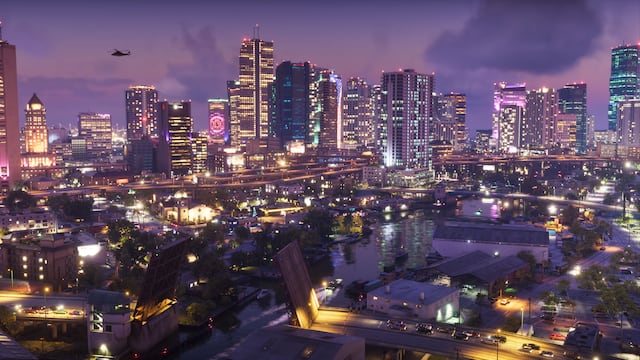
If Vice City’s streets look almost black at night, or bright daylight seems flat and washed out, the problem may lie in your HDR setup rather than your console. Early display testing after Grand Theft Auto VI‘s November 19, 2026 launch suggests that the game’s calibration controls do not always produce the picture players expect. Fortunately, there are several practical adjustments worth trying before buying a new television or giving up on HDR altogether.
This GTA 6 HDR settings guide, checked on November 24, explains how to establish a reliable display setup on PS5, PS5 Pro and Xbox Series X|S, interpret the three in-game sliders, and judge the results using actual gameplay. The recommendations combine official hardware troubleshooting guidance with published independent display testing; they are not the results of our own laboratory measurements.
Why does GTA 6 look so dark?
HDR, or high dynamic range, allows compatible displays to represent a wider range of light intensities than standard dynamic range. But it does not mean every scene should be brighter. A convincing night scene should still look like night, with the brightest signs and lamps standing out against darker surroundings. Problems arise when useful shadow detail disappears or highlights become indistinguishable from one another.
Display specialists HDTVTest identified a mismatch between the game’s calibration patterns and its gameplay output, as reported by Push Square and Pure Xbox. Their findings concern the calibration procedure rather than proving that HDR rendering as a whole is defective. Push Square also reports that the PS5’s system-wide HDR calibration is not applied by the game in the expected way.
That distinction matters: changing settings outside the game alone may not resolve the issue. You should establish a sensible television and console configuration, then evaluate the game’s own picture controls separately.
Step 1: Prepare your TV or monitor
Before touching GTA 6’s sliders, check the signal chain. Rockstar’s official HDR troubleshooting guide recommends checking display compatibility, HDMI equipment and picture processing. Its advice applies to Rockstar titles generally, not a specific fix for GTA VI’s launch calibration.
- Confirm that the HDMI input receiving your console supports HDR and has its enhanced signal mode enabled where necessary.
- Use the console’s supplied HDMI cable or a suitable replacement.
- Select the television’s gaming preset where available.
- Temporarily disable automatic picture enhancements and dynamic tone mapping. If your TV offers HGiG, try that mode.
- Keep room lighting consistent while comparing settings.
HGiG is a way for compatible displays to handle game HDR without unnecessarily remapping the image. Menu names and implementation differ across manufacturers, so consult the documentation for your exact model. Do not assume that two televisions from the same brand will behave identically.
Step 2: Check console HDR output
PlayStation 5 and PS5 Pro
Open the console’s Settings menu, select Screen and Video, then Video Output. Under HDR, choose On When Supported. The Adjust HDR option in the same area lets you calibrate the console’s output for compatible content. Sony explains these controls in its official PS5 HDR guide.
Keep this configuration as your starting point for other games, too. Remember that a console-level calibration does not replace GTA VI’s own settings.
Xbox Series X and Series S
Open the Xbox settings, go to General and then TV & display options. Check whether HDR10 is supported and enabled in Video modes. Use the HDR gaming calibration option if available on your configuration. If HDR cannot be enabled at all, troubleshoot the connection or display before trying to compensate through the game.
Step 3: Adjust GTA 6’s HDR calibration
On PS5, pause the game and navigate to Settings, Display and HDR Calibration. The display controls are the relevant starting point on Xbox as well. Take a photograph of your original values so you can easily restore them if the changes make your picture worse.
HDTVTest’s initial findings, reported by both gaming publications above, suggest the following starting values for a display capable of at least 1,000 nits of peak brightness. These are independent recommendations, not official Rockstar presets or universal settings.
| In-game setting | Initial value | What to look for |
|---|---|---|
| Max Brightness | 2,000 | Definition in very bright objects |
| Black Levels | 20 | Separation of nearby dark tones |
| Paper White | 35 | Comfortable ordinary whites and midtones |
Do not treat 2,000 as the brightness your television must physically deliver. It is a suggested in-game control value arising from the independent testing, and the controls do not behave like a simple measurement of your panel. For lower-brightness displays, the same testing suggests scaling back the maximum-brightness setting. Your display’s tone mapping and real performance may produce different results.
How to tell whether your adjustments actually help
Rather than chasing someone else’s exact numbers, run a short visual check of your own. Find a daylight scene where a bright sky meets a darker building. Then visit a dimly lit interior or street at night. Compare the same viewpoints before and after changing a setting, ideally with similar time of day and weather.
Make one change at a time. If increasing the black level makes previously invisible details easier to see but turns every deep shadow grey, you may have gone too far. If raising the brightness of ordinary surfaces makes them uncomfortable to look at, return to the previous paper-white value. Recheck both scenes because improving one at the expense of the other may simply move the problem.
A bright room can also make an otherwise accurate image difficult to see. Before changing the calibration repeatedly, try reducing reflections on the screen or adjusting room lighting. There is no requirement to play in complete darkness, but a stable viewing environment makes comparisons more meaningful.
Should you turn HDR off in GTA 6?
SDR is a reasonable fallback when your display has limited HDR capability or its tone mapping produces an image you dislike. Compare both modes rather than assuming HDR is always superior. If you switch to SDR, use the game’s ordinary brightness calibration and avoid forcing an HDR conversion at console level. You can return to HDR later if a different setup or software update improves the result.
Keep picture quality separate from frame rate. HDR adjustments are not a method of unlocking 60fps. For the distinction, read our GTA 6 console performance guide. Our November 23 patch report also covers the first post-launch bug fixes; the published list did not specifically identify HDR calibration as a resolved issue.
Frequently asked questions
Are these the best GTA 6 HDR settings for every TV?
No. The suggested baseline comes from initial testing on a bright display. Screen technology, tone mapping and viewing conditions influence the result.
Why does the picture still look dark after adjusting HDR on PS5?
The game’s separate calibration can behave differently from the system-level settings. Check the in-game display controls and test in actual scenes.
Does Rockstar officially recommend the 2,000 / 20 / 35 values?
No. Those values come from independent display analysis, not Rockstar’s general support instructions.
Will HDR settings improve FPS?
They are picture controls, not a frame-rate or performance-mode switch.
Final advice
Start with a compatible display and a consistent picture mode. Adjust GTA VI’s own HDR controls conservatively, compare real scenes, and retain whichever configuration makes the game readable without sacrificing its intended atmosphere. Revisit the settings if future patches address calibration.
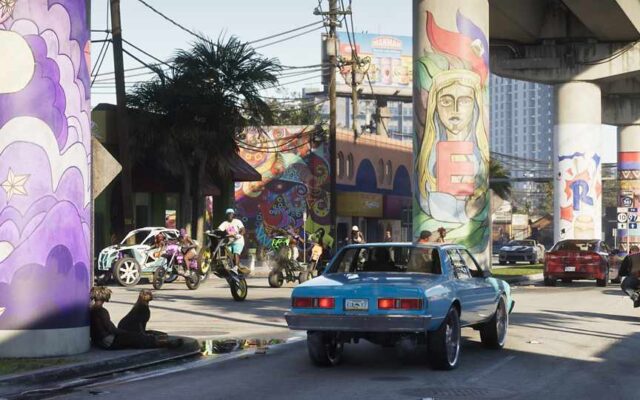
Featured image: Rockstar Games, official Vice City promotional screenshot; illustrative only, not an HDR comparison.


Your perspective matters
Share your thoughts respectfully. Comments are moderated.